Apache Web Server on Linux
In this post we will install Apache web server on Linux OS, connect it with the domain and enable SSL.

In this post I will show you how to create a test server for static web applications. If you are interested in dynamic websites and APIs created with Java you can skip to this post but it is recommended to read this one first. I will assume that you have a basic knowledge or Linux system.
What will you need
- Raspberry Pi 3, old/new computer that will be the server or Cloud Server,
- Access to internet,
- Domain name (needed for SSL and multiple applications on the same server).
Introduction
I will use Raspberry Pi as a server. If you don’t know, it is a single board computer that is cheap and good starting point for learning Linux and Servers. It does not have very powerful hardware but you will be surprise with how much things you can do with it. On my Raspberry I will use Raspbian Lite, which is minimal installation of Raspbian (Debian) that does not have Desktop environment. I will recommend you to do the same (if you are using Raspberry) since servers usually do not have GUI, therefore you will learn how to use terminal and SSH. Please update and upgrade your Pi and install openssh server (if not installed) and vim editor. Also if you are going to connect your Raspberry to the internet (which we will do in this post), do not forget to change default password and user.
Alternatively you can use some old computer or Cloud Server that is available on Linode, Digital Ocean and AWS. If you setup server with Ubuntu or Debian, almost all parts of this post well be applicable to your configuration, in comparison to the Raspberry. Now let’s get started.
Apache 2
Apache is a server that is used for serving static content (of course not only this). It does not have servlet container, therefore it cannot be used directly for deploying and serving Java applications. Let’s say for example that we want to create simple website using HTML, CSS and Javascript. Apache will allow us to serve site content to the user on the internet.
For basic stuff, Apache is actually very simple to use. First of all, start by installing Apache on your Linux server by running:
sudo apt install apache2After installation is completed, you can see if Apache was successfully installed and started by running:
systemctl status apache2 ---- OUTPUT ----
● apache2.service - The Apache HTTP Server
Loaded: loaded (/lib/systemd/system/apache2.service; enabled; vendor preset: enabled)
Active: active (running) since Thu 2019-01-10 13:08:52 UTC; 1min 47s ago
Process: 510 ExecStart=/usr/sbin/apachectl start (code=exited, status=0/SUCCESS)
Main PID: 551 (apache2)
CGroup: /system.slice/apache2.service
├─551 /usr/sbin/apache2 -k start
├─553 /usr/sbin/apache2 -k start
└─554 /usr/sbin/apache2 -k startIf it has failed to start, you will need to see the log and try to resolve the issue. Since Apache is running, we can open a browser and type the IP Address of the server. By doing this you should get default Apache web page, as shown in Figure 1. Also have in mind that by default, Apache is configured to start with server, so if you restart the server, Apache will start when the system is ready.

Figure 1 - Default Apache web page.
If you cannot access the page but you are sure that Apache is started, check the firewall by running sudo ufw status. You can search the web to see how to allow TCP connection to the service on specific port.
Domain Name and DNS Setup
Before we push our static web application to Apache, we need to configure DNS setting on our domain. Technically you don’t need to do this, you can use an IP address to access Apache but you will not be able to create multiple Virtual Hosts on the same port, Virtual Hosts will allow us to have more then 1 application on the same server and create access restrictions. Access by IP address is also bad to use because of security. Domain names are really cheap and you can buy 1 for 1$ (with around 10$ per year to extend it).
Since my domain name branislav.xyz is on the Namecheap, I will login and go to Advance DNS settings in the dashboard of the domain name. If you are using some other provider, like GoDaddy, you will have something similar.
In DNS settings add a new A Record. If you want, you can add subdomain name or you can add @ which means that your domain (origin) will point to an IP address that you have defined. In my case, for the host/subdomain I will type some random string is65fhy and for the value I will type my Public IP Address as shown in Figure 2.

Figure 2 - DNS settings for A Record.
You can find what is your public IP address by opening new google search and typing what is my ip, as shown in Figure 3. Have in mind that if you are using Cloud Server, your public IP address will be provided in a dashboard.

Figure 3 - Find your public IP address.
Now we need to setup the Gateway in our network to allow and redirect requests from the internet to our server/raspberry. Have in mind, if you are using Cloud Server like DigitalOcean, Linode or AWS you can skip the gateway setup since you cannot configure it, that is handle by hosting provider.
Gateway Setup
Connect to the gateway router in your network, it is usually on 192.168.0.1 or 192.168.1.1 by default. Have in mind, what are we going to do now can be dangerous and you are doing it on your own risk. We will allow internet access to the server which means that anyone can access it, therefore do not leave week security on it and restrict server access to other parts of your local network.
When you are logged in the gateway, go to Port Forwarding. Since all routers are different you will need to find this setting on your own. You can go to google, enter name of your gateway router + Port Forwarding and I’m sure that you will find the answer on how to do it.

Figure 4 - Redirecting internet traffic to server.
Let’s explain what is happening here. In the browser, if we type out Public IP address and set the port to 1234, request will be parsed to device in our local network with the IP address 10.20.30.31 on port 80. In this case, port 1234 will be used for HTTP requests. Since we have connected a domain to a public IP address, if you open the browser and type mydomain.com:1234, the default Apache web page will be served (in my case, I will type is65fhy.branislav.xyz:1234). For those of you that are using Cloud server, you do not specify the port and use a default HTTP port. So you will type mydomain.com in the browser.

Figure 5 - Redirecting internet traffic to server.
Virtual Host
Instead of default Apache web page, when someone goes to server using domain name we want to show them Hello World! page, and when they try to connect to server using an IP address, we want server to response with status 403. We will do this by setting up virtual hosts. First go to /etc/apache2/sites-available and list all files.
  cd /etc/apache2/sites-available
  ls -l
Here you will see 2 files, 000-default.conf and default-ssl.conf. Those are 2 default configurations and 000-default.conf is serving us the content that we are currently seeing when we go to our domain. Now, go to browser and type PUBLIC_IP:1234 where PUBLIC_IP will be your public IP address. You will be granted with Apache default page and what we want to happened is to get HTTP Status 403, which means Forbidden. To do this we will run sudo vim 000-default.conf and make next changes:
  <VirtualHost *:80>
      ServerName catchall
      <Location />
          Order allow,deny
          Deny from all
      </Location>
  </VirtualHost>
Save and exit. If we restart Apache by running sudo /etc/init.d/apache2 restart and refresh browser tab, we will not be able to access default Apache web page, not with Public IP and not with our domain, as it can be seen in Figure 6.

Figure 6 - Forbidden access.
This is good. Now we are in control over what we are going to serve to incoming requests. In /etc/apache2/sites-available create new file called mydomain.com.conf, in my case this will be is65fhy.branislav.xyz.conf. I like to follow this naming convention because then I know what files to look in if something goes wrong with some virtual host. Now open the file and edit it like this:
  <VirtualHost *:80>
      ServerAdmin admin@mydomain.com
      ServerName mydomain.com

      DocumentRoot /var/www/mydomain.com

      ErrorLog ${APACHE_LOG_DIR}/mydomain.com/error.log
      CustomLog ${APACHE_LOG_DIR}/mydomain.com/access.log combined
  </VirtualHost>
Replace mydomain.com with the domain or subdomain name that you have setup in DNS settings, in my case this will be is65fhy.branislav.xyz. Save the configuration and exit. Now we need to create log files and document root that we have specified in the configuration file. We will do this by running next commands:
  sudo mkdir /var/log/apache2/mydomain.com
  sudo touch /var/log/apache2/mydomain.com/error.log
  sudo touch /var/log/apache2/mydomain.com/access.log
  sudo chmod -R 740 /var/log/apache2/mydomain.com
  sudo chown -R root:adm /var/log/apache2/mydomain.com
  sudo mkdir /var/www/mydomain.com
  sudo touch /var/www/mydomain.com/index.html
  sudo chmod -R 775 /var/www/mydomain.com
  sudo chown -R root:_MY_USER_ /var/www/mydomain.com
Replace _MY_USER_ with your Linux user and mydomain.com with your domain (in my case this is is65fhy.branislav.xyz). After this, open the index.html in /var/www and write some HTML, something like this:
  <!DOCTYPE html>
  <html>
    <head>
      <title>Test App</title>
    </head>
    <body>
      <h1>Hello World!</h1>
    </body>
  </html>
After this, we can enable configuration by running a2ensite mydomain.com.conf and restart Apache by running sudo /etc/init.d/apache2 restart. If you have done everything correct, by going to your domain name on port 1234 (if your server is on Cloud hosting, you do not specify the port) you will get content of index.html, as shown in Figure 7.

Figure 7 - Custom content on custom domain.
But if you type your public IP address you will get Forbidden page. In this way, content of our web site can be seen only by using the domain name, direct access by an IP address is forbidden.
Pushing Application to Server
Now after the basic setup is done you are probably asking yourself is it possible to push application to server or do you need to write entire application on server. Here I will show you how to push application using Putty pscp.
I have downloaded dashboard application example from www.creative-tim.com and modified it a little bit so it can be served by Apache sever. No meter what application you are writing (Angular, Vue, plain HTML/JS…) idea is to have build directory that contains all static content inside of the project. Out of the build directory you can create a file called push or push.bat if you are using Windows. Inside of this file we will write pscp command like this:
pscp -pw __SSH_PASSWORD__ -r build/* __SERVER_USER__@__SERVER_IP__:/var/www/__MYDOMAIN.COM____SERVER_USER__- User that have permission to access/var/www/*.__SSH_PASSWORD__- Password for selected user. You can use environment variable, in this way you don’t need to have password inside of this file.__SERVER_IP__- Local IP address of the server.__MYDOMAIN.COM__- In my case this will be is65fhy.branislav.xyz.
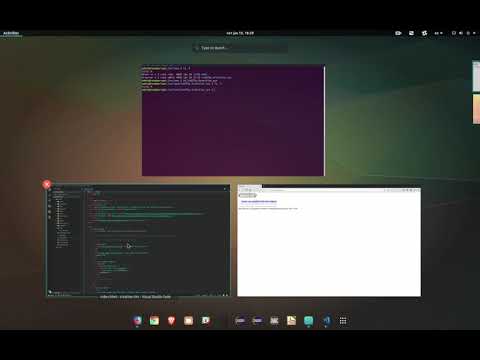
Video 1 - Example on how to push application to Apache server.
Process of pushing, building and deploying an appplication can be automated with Github but this is out of the scope of this post. Also for single page applications (like Vue.js) there are some configurations that need to be done but we will cover them some other time.
Custom Error Pages
For example, if we try to access mydomain.com/bla_bla_bla we will get Page not found and it will be a default Apache error page for this error. To customize a site, it is a good idea to create your own error pages. You can do this by going to the virtual host configuration of your domain and add next line after DocumentRoot:
ErrorDocument 404 /errors/404.htmlNext, inside root directory we can create this path and file. In my case this fill be /var/www/is65fhy.branislav.xyz/errors/404.html. After creating this page and added ErrorDocument to site configuration we can restart Apache and if we go to invalid page we will get custom 404 page, as shown in Figure 8.

Figure 8 - Custom page 404.
Enable HTTPS Only Access
HTTP is fast and simple to understand but communication is not encrypted and therefore not protected. Today this is a big problem since a lot of sensitive information is sent over the web. This means that someone can spy on communication between client and server and pull data that is exchanged. Since data is not encrypted, spy can get communication content. We can agree that this is not good. Solution is to encrypt all data sent over HTTP where only server and client can decrypt it, in this way spy cannot get anything useful by listening. We are doing this by using SSL. In this post we will not go into details on how encryption works and what is public/private key pair. We will only show how to obtain SSL Cert and how to connect it with your virtual host.
To obtain SSL Cert we will user Certbot and Letsencrypt. On your server install certbot by running:
sudo apt install certbotIf your server OS does not have certbot package, you can use certbot-auto (more information on Certbot website). Next we need to change port configuration in our gateway as before. Go to gateway and parse external port 80 to server on port 80 and external port 443 to server on port 443. After saving, if you go to browser and go to mydomain.com you will be able to see your web site, just like before but on default HTTP port, as shown in Figure 9.

Figure 9 - Web site on port 80.
As you can see, now we don’t need to specify a port in URL since we are using default HTTP port. With this done, we can obtain SSL Cert by running:
sudo certbot certonly --webroot -w /var/www/__MY_DOMAIN.COM__ -d __MY_DOMAIN.COM__- Replace
__MY_DOMAIN.COM__with your domain name, im my case this will beis65fhy.branislav.xyz. Have in mind that if you have more then 1 domain pointing to the server and same application, you can specify all domains when running certbot command.
IMPORTANT: If you get an error, do not force this command since you will be banned. Read error message and fix it before running certbot again!
If everything goes right, you will see output similar to this:
  Saving debug log to /var/log/letsencrypt/letsencrypt.log
  Obtaining a new certificate
  Performing the following challenges:
  http-01 challenge for is65fhy.branislav.xyz
  Using the webroot path /var/www/is65fhy.branislav.xyz for all unmatched domains.
  Waiting for verification...
  Cleaning up challenges
  Generating key (2048 bits): /etc/letsencrypt/keys/0000_key-certbot.pem
  Creating CSR: /etc/letsencrypt/csr/0000_csr-certbot.pem

  IMPORTANT NOTES:
  - Congratulations! Your certificate and chain have been saved at
    /etc/letsencrypt/live/is65fhy.branislav.xyz/fullchain.pem. Your
    cert will expire on 2019-04-11. To obtain a new or tweaked version
    of this certificate in the future, simply run certbot again. To
    non-interactively renew *all* of your certificates, run "certbot
    renew"
  - If you like Certbot, please consider supporting our work by:

    Donating to ISRG / Let's Encrypt:   https://letsencrypt.org/donate
    Donating to EFF:                    https://eff.org/donate-le
Well done! Now you have SSL Cert. All we need to do now is to enable SSL module for the Apache and create virtual host that will listen on port 443 (default HTTPS port).
We can start by creating file called mydomain.com-ssl.conf in /etc/apache2/sites-available. We can edit it to include SSL Cert.
  sudo a2enmod ssl
  sudo /etc/init.d/apache2 restart
  sudo touch /etc/apache2/sites-available/mydomain.com-ssl.conf
  sudo vim /etc/apache2/sites-available/mydomain.com-ssl.conf
<IfModule mod_ssl.c>
<VirtualHost _default_:443>
ServerAdmin admin@mydomain.com
ServerName mydomain.com
DocumentRoot /var/www/mydomain.com
ErrorLog ${APACHE_LOG_DIR}/mydomain.com/error.log
CustomLog ${APACHE_LOG_DIR}/mydomain.com/access.log combined
SSLEngine on
SSLCertificateFile /etc/letsencrypt/live/mydomain.com/cert.pem
SSLCertificateKeyFile /etc/letsencrypt/live/mydomain.com/privkey.pem
<FilesMatch "\.(cgi|shtml|phtml|php)$">
SSLOptions +StdEnvVars
</FilesMatch>
<Directory /usr/lib/cgi-bin>
SSLOptions +StdEnvVars
</Directory>
</VirtualHost>
</IfModule>Now we can save the configuration but do not forget to change data for your domain name, it will not work with mydomain.com. We can enable configuration and restart apache.
  sudo a2ensite mydomain.com-ssl.conf
  sudo /etc/init.d/apache2 restart
If you get an error after enabling SSL host and restarting Apache, please view error log. With everything done correctly, we will get OK and we can open a browser and type https://mydomain.com. As you can see in Figure 10, communication with server is now secure.

Figure 10 - Enabled SSL on the web site.
Very good. SSL is now working. But we have a small problem, we can still access the site over HTTP and we do not want that. We want to redirect all traffic to HTTPS. We will do this by editing HTTP virtual host configuration.
sudo vim /etc/apache2/sites-available/mydomain.com.conf <VirtualHost *:80>
ServerAdmin admin@mydomain.com
ServerName mydomain.com
# Redirect all to HTTPS
Redirect / https://mydomain.com
DocumentRoot /var/www/mydomain.com
ErrorLog ${APACHE_LOG_DIR}/mydomain.com/error.log
CustomLog ${APACHE_LOG_DIR}/mydomain.com/access.log combined
</VirtualHost>With this we are done. All request to your site will be redirected to HTTPS. If you have any problems please feel free to contact me on blog@branislav.xyz.